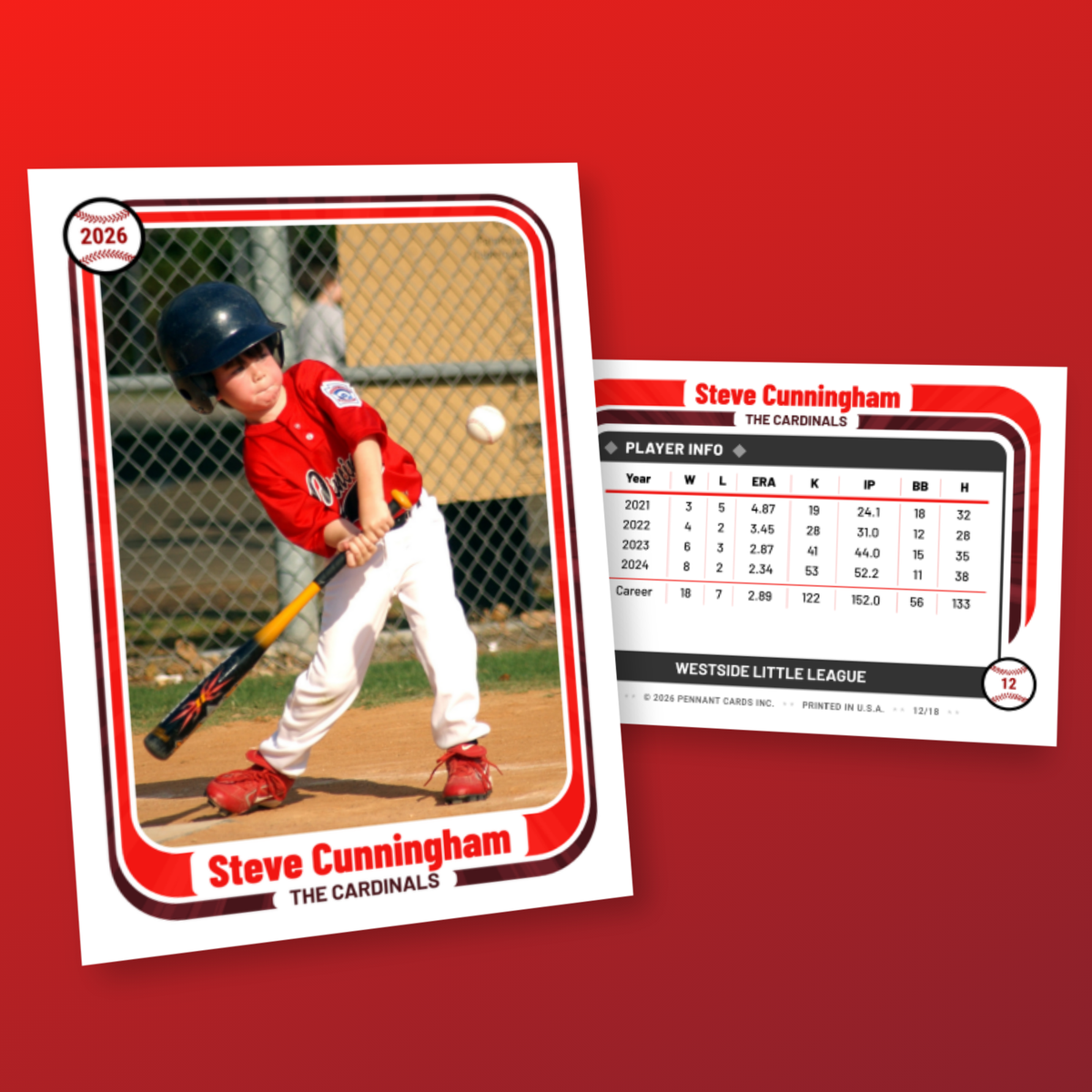
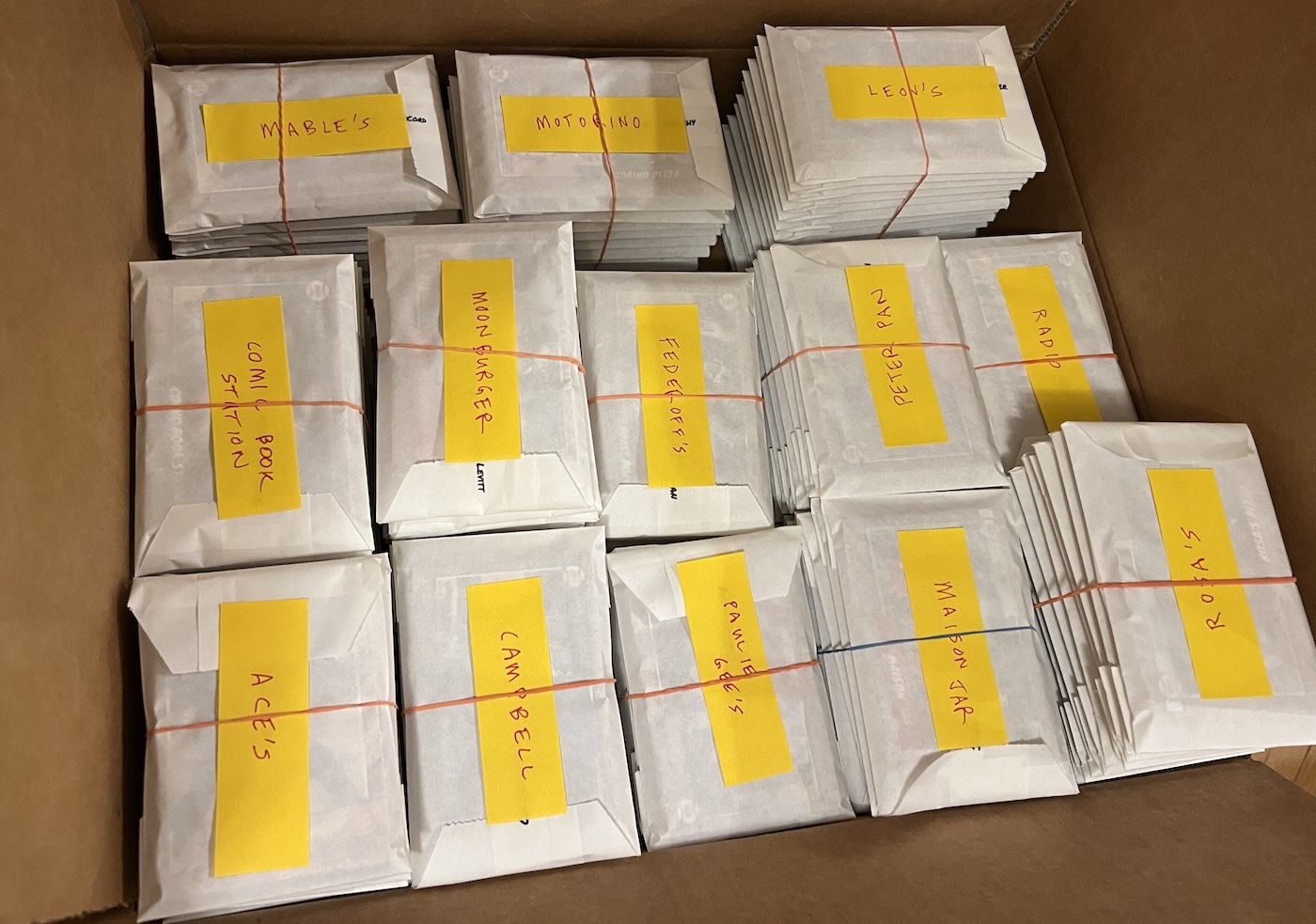
This is a simple, straightforward guide for how to quickly create custom trading cards for an entire league - say 200 players across 14 teams - using the Pennant Cards platform.
Step 1: Build the roster spreadsheet
In your favorite spreadsheet software, create three columns at minimum: first name, last name, and team. Everything else is optional.
| First Name | Last Name | Team | Jersey Number | Position | Nickname | Favorite Ballplayer | Walk-up Song |
|---|---|---|---|---|---|---|---|
| Mateo | Rivera | Tigers | 7 | Shortstop | Matty Ice | Francisco Lindor | Thunderstruck |
| Owen | Blackwell | Tigers | 12 | Pitcher | O-Dog | Shohei Ohtani | Eye of the Tiger |
| Theo | Castellano | Giants | 9 | Center Field | The Wall | Aaron Judge | Crazy Train |
| Nora | Delgado | Rockies | 8 | Pitcher | Nono | Ronald Acuna Jr. | Bad Guy |
- Required: First Name, Last Name, Team. The team column is what creates your teams, so spell each team name the same way on every row. Extra spaces and capitalization are ignored, but "Tigers" and "Tiger" become two teams.
- Optional player info: Jersey Number and Position. These show up on the front and back of the card depending on the design.
- Optional questions: add one column per question you want on the back of the card. Nickname, Favorite Ballplayer, and Walk-up Song are the three most popular. Leave the cells blank if you don't have the answers yet. You can collect them from parents later (see Step 5).
- Card Type: you can optionally use "player", "coach" or "team" to denote if the card is going to be a team card, a coach card, or a player card. You can also just automatically create team cards in step 3.
When the sheet is done, export it as a CSV file. In Google Sheets that's File, Download, Comma Separated Values. In Excel it's Save As with the CSV format. In Numbers it's File, Export To, CSV.
Step 2: Create a project and import the CSV
Create a new project and pick a card design. Then open the Card Data tab and click Import CSV. You'll see a mapping screen that lists each column in your file and what it will become. Columns named First Name, Last Name, Team, Jersey Number, and Position are recognized automatically. For each question column, pick "Create new stats question" so the column becomes a question on the back of the card.
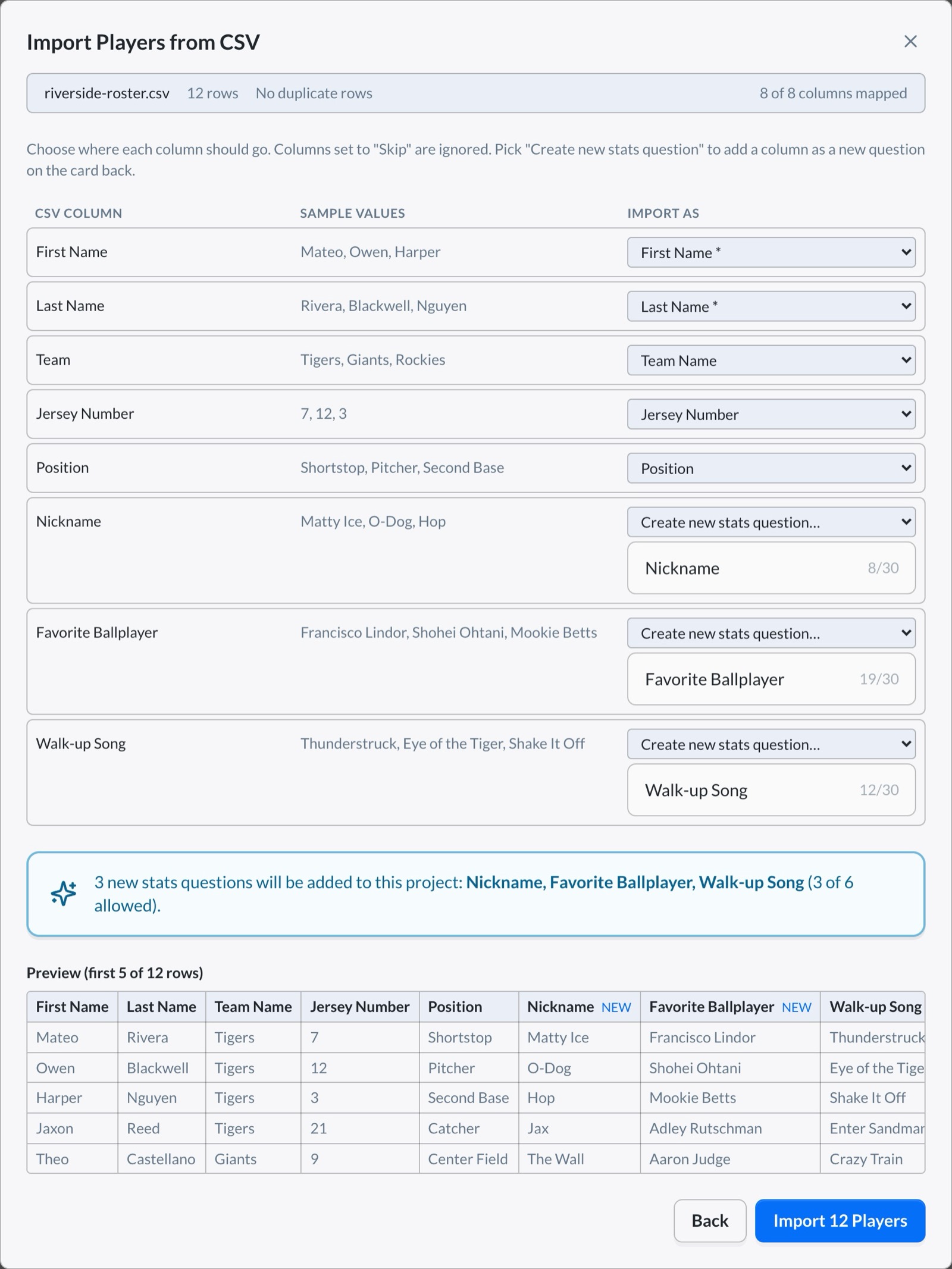
Click Import. Every team in the spreadsheet is created, and every row becomes a card with its name, number, position, and answers already filled in. The result screen tells you how many cards were created and lists any rows it had trouble with. Nothing is imported until every row checks out, so you can fix the sheet and try again without creating duplicates.
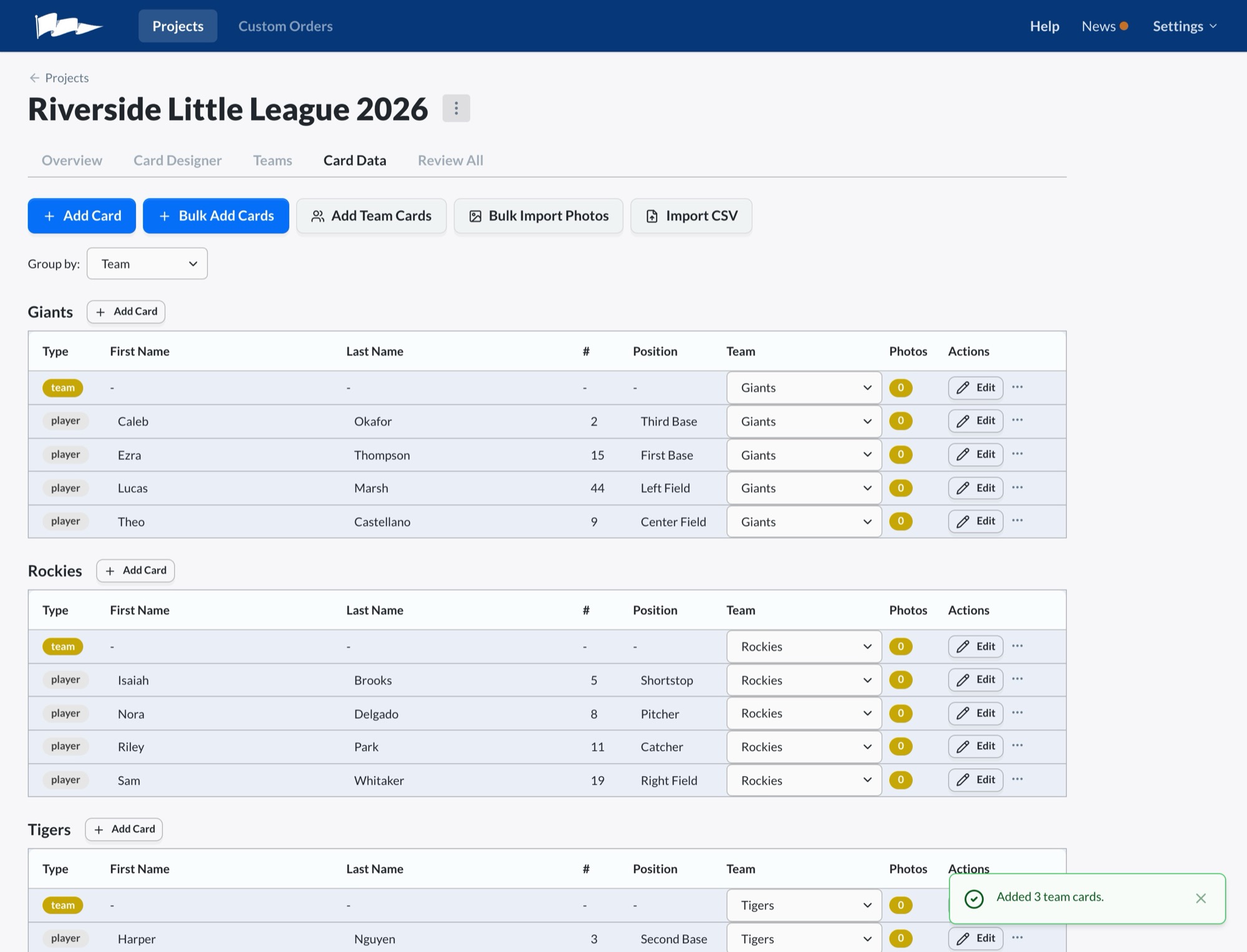
Shortcut: on the Projects page, "Create Project from Files" does the same thing in one step, creating the project and importing the CSV together. You can change the card design afterwards.
Step 3: Add a team card for each team
A team card has the team photo on the front and the roster on the back, and it's the one card every kid on the team ends up with. On the Card Data tab, click Add Team Cards. It lists every team that doesn't have one yet and creates them all at once, with the roster back layout already selected. Run it again later if you add a team and it will only create the missing ones.
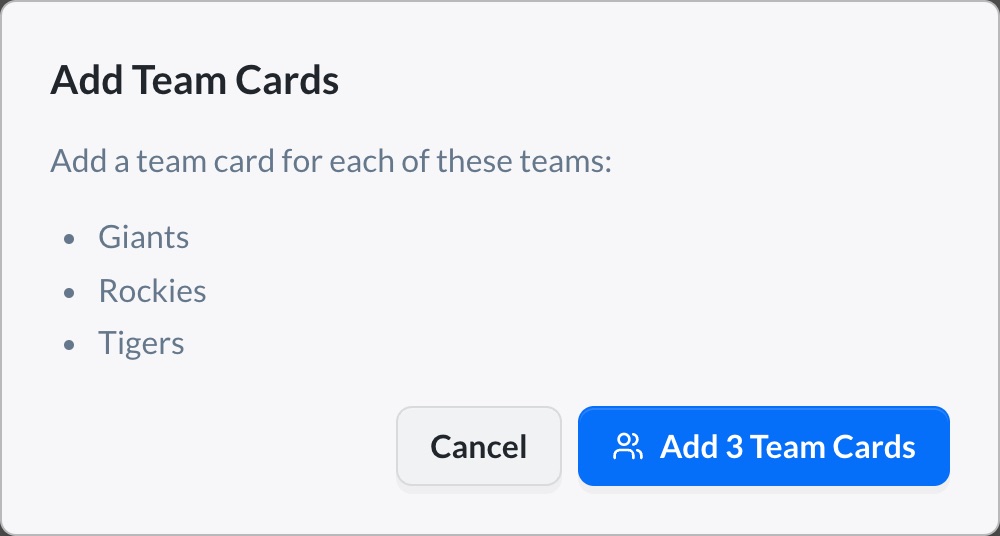
For each team card, open the card in the Card Designer, and drop the photo onto the front of the card.
Step 4: Bulk upload the player photos
The easiest way to upload a lot of photos at once to the right card is to name each photo file with the player's name, then upload the whole folder at once, so the photos land on the right cards.
- Name files "First Last.jpg". "Mateo Rivera.jpg", "mateo_rivera.jpg", and "Rivera, Mateo.jpg" all work. Capitalization, accents, and apostrophes don't matter.
- Two photos per player: add "action" or "portrait" to the end of the file name, like "Mateo Rivera action.jpg" and "Mateo Rivera portrait.jpg". A "1" or "2" at the end works too.
- Close counts. "Sam" matches Samuel, and a one-letter typo in a longer name still finds the player. If a file could match two players equally well, it's left unmatched rather than guessed.
- JPG, PNG or HEIC, up to 20 MB each. iPhone HEIC photos are converted to JPEG on upload. Photos are matched against every player in the project, so one upload can cover the whole league.
On the Card Data tab, click Bulk Import Photos and select the files. Before anything uploads, you get a preview with a row per photo: which card it matched, whether it's the front or back photo, and its status. A file that doesn't match anyone is flagged. A second file for the same player and slot is skipped as a duplicate. You can go back, rename the file, and try again, or let an unmatched photo create a new card if the player was missing from the spreadsheet.
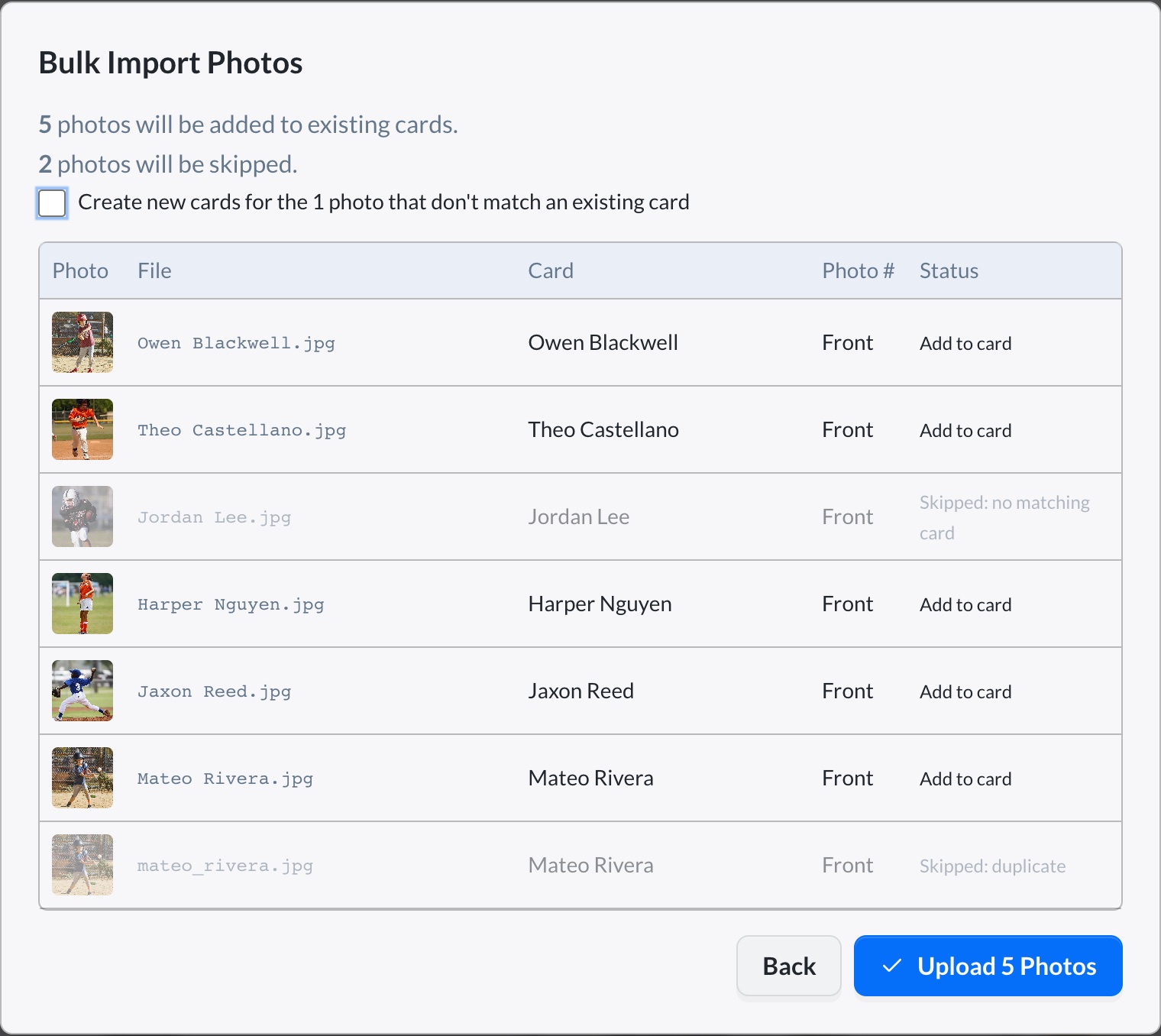
Click Upload. The photos are placed on the cards automatically. If a crop needs adjusting, you can move and scale the photo on any card in the Card Designer.
Step 5: Pick the back of the card
The back layout is set per card, and the Copy menu next to it applies your choice to every card in the team or the whole project, so you only need to decide once. There are two main options.
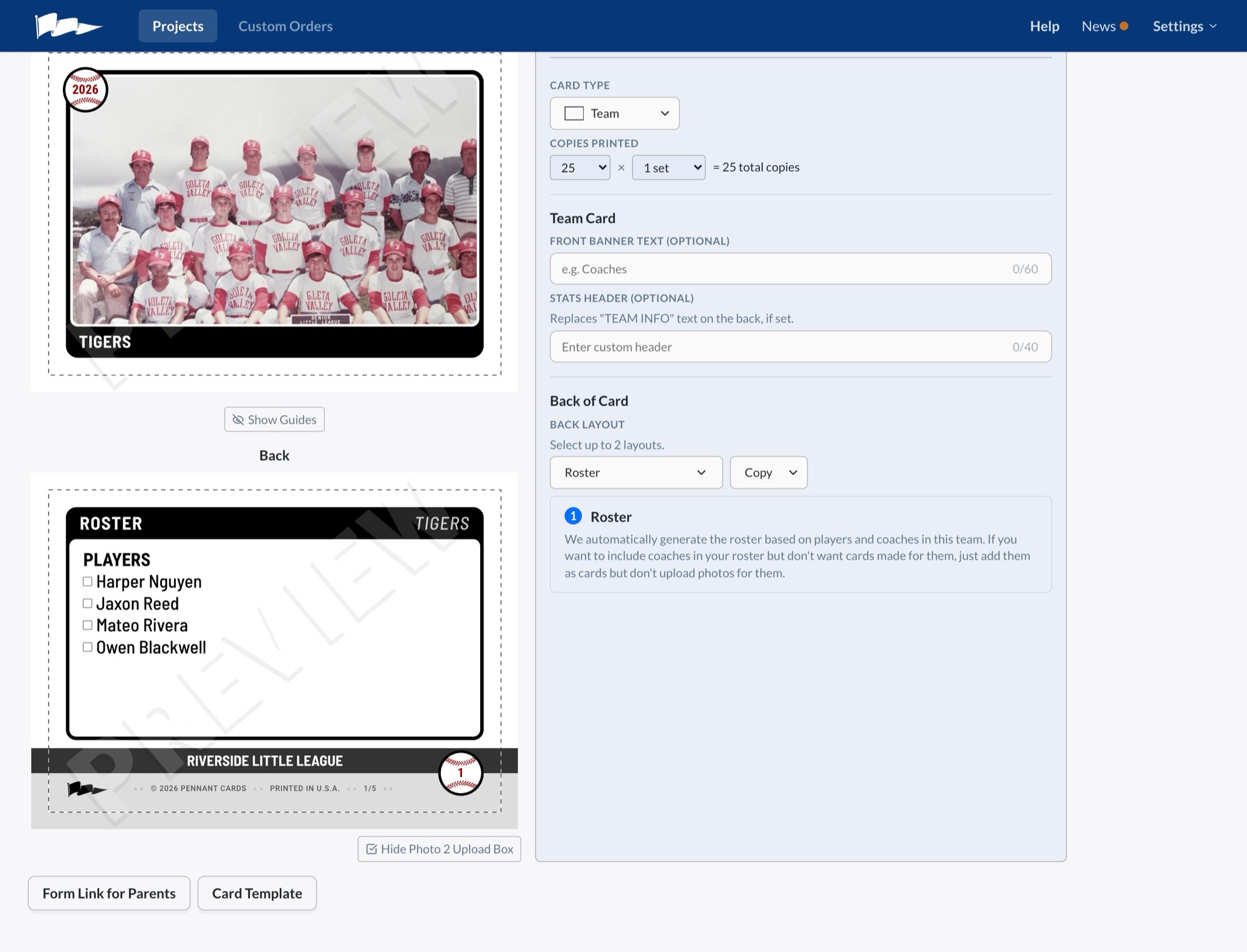
Roster: the fast option
The roster layout lists every player on the team, automatically generated from the card data. If you're short on time, just use Roster, copy it to all cards in the project, and move on to Step 6.
Stats: fun questions from parents
The stats layout prints the questions and answers from your spreadsheet. If you left those columns blank, or didn't include any, you can send parents a form instead. Good questions have short, easy answers and get kids talking:
- Nickname
- Favorite Ballplayer
- Walk-up Song
- Favorite Position
- Baseball Superpower
- Favorite Food
- Grossest Thing
- Dream Job
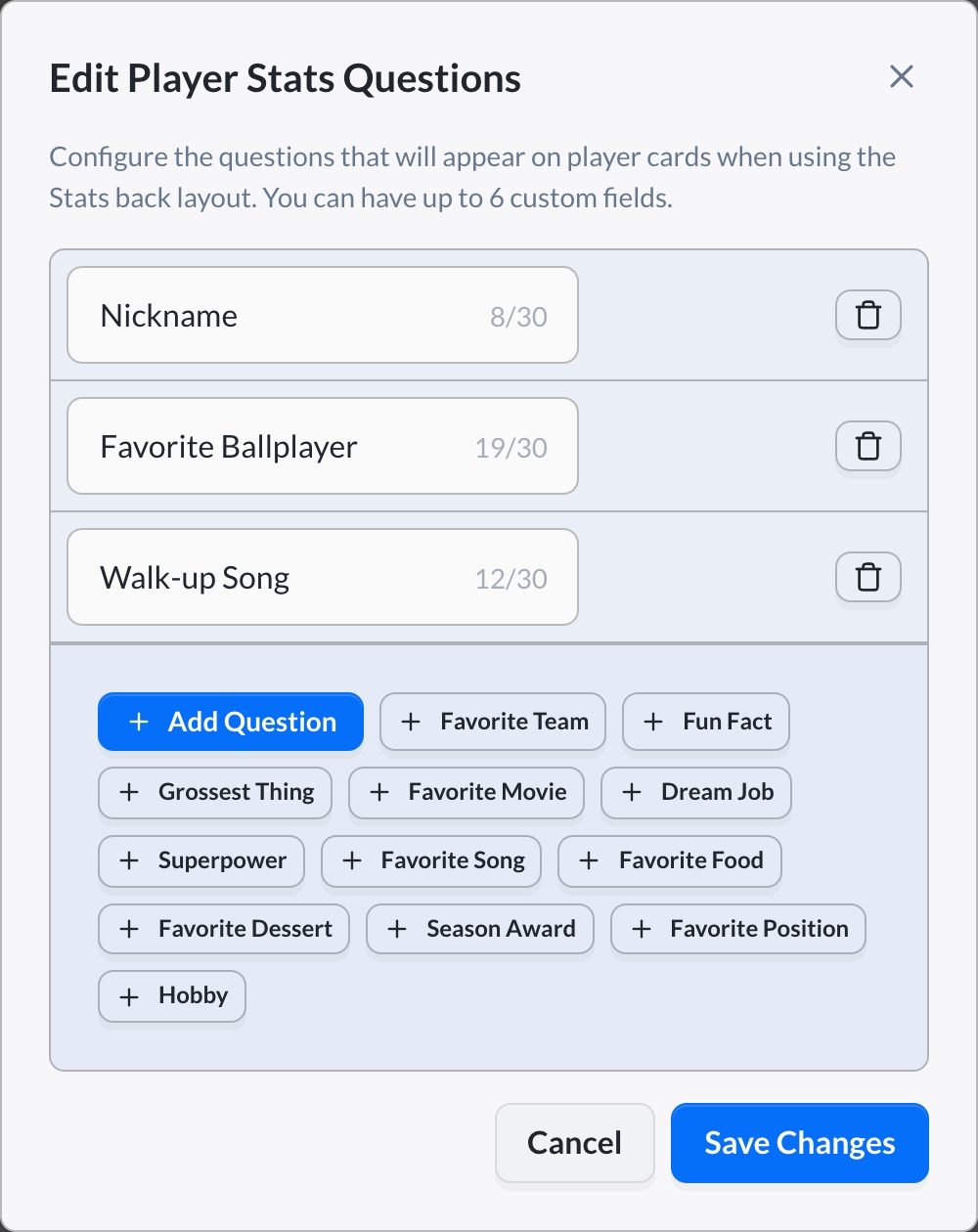
Edit the questions from the Project tab in the Card Designer. Up to six fit on a card. We looked at thousands of cards to find the most popular answers, if you want ideas.
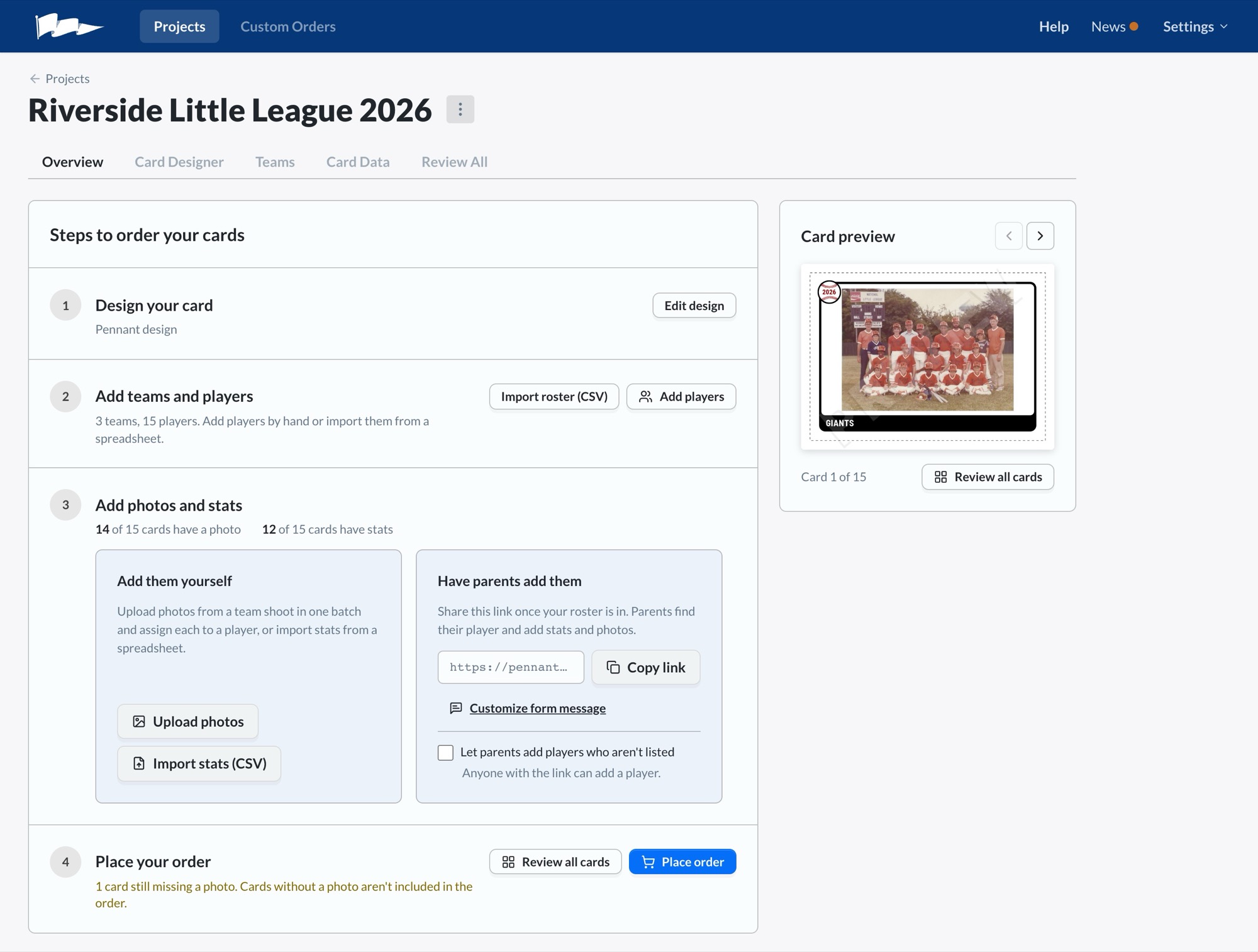
To collect answers, go to the Overview tab and copy the form link under "Have parents add them". It's one link for the whole league. Parents open it, type their player's name, confirm the spelling, and fill in the answers. If a player missed photo day, they can upload a photo from the same form.
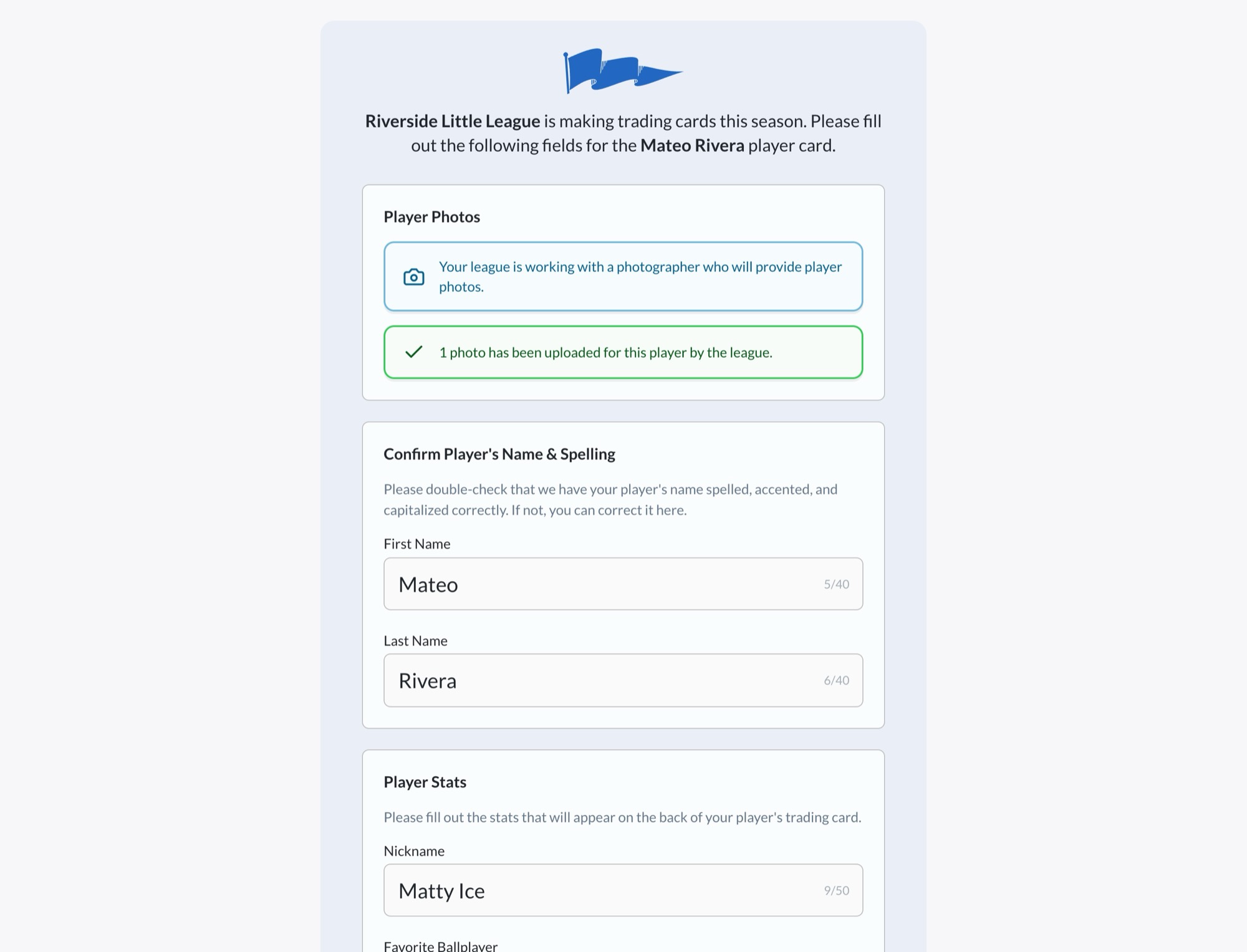
Cards whose parents never fill out the form don't print blank. By default, an empty back gets a random "Did You Know?" fact about the sport, so every card still has something to read.
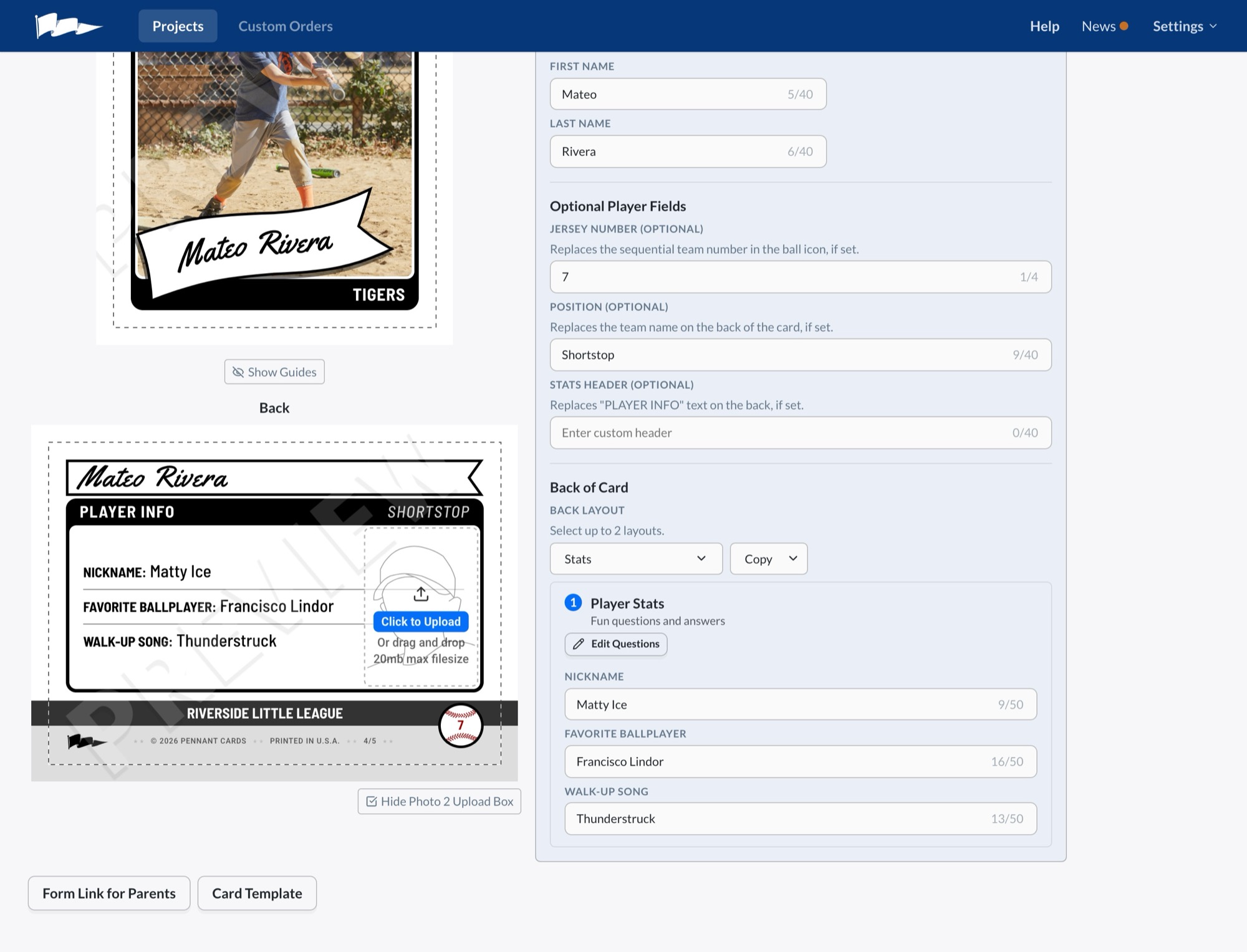
You can also combine two layouts on one card, such as stats on top and the roster below, or use a text block or a game stats table instead. The back layouts page shows every option.
Step 6: Review and place the order
Open the Review All tab. It shows the front of every card, grouped by team, on one page. Scan it for three things: a card with no photo, a photo on the wrong player, and a crop that cut off a head or a bat. Click any card to fix it in the Card Designer.
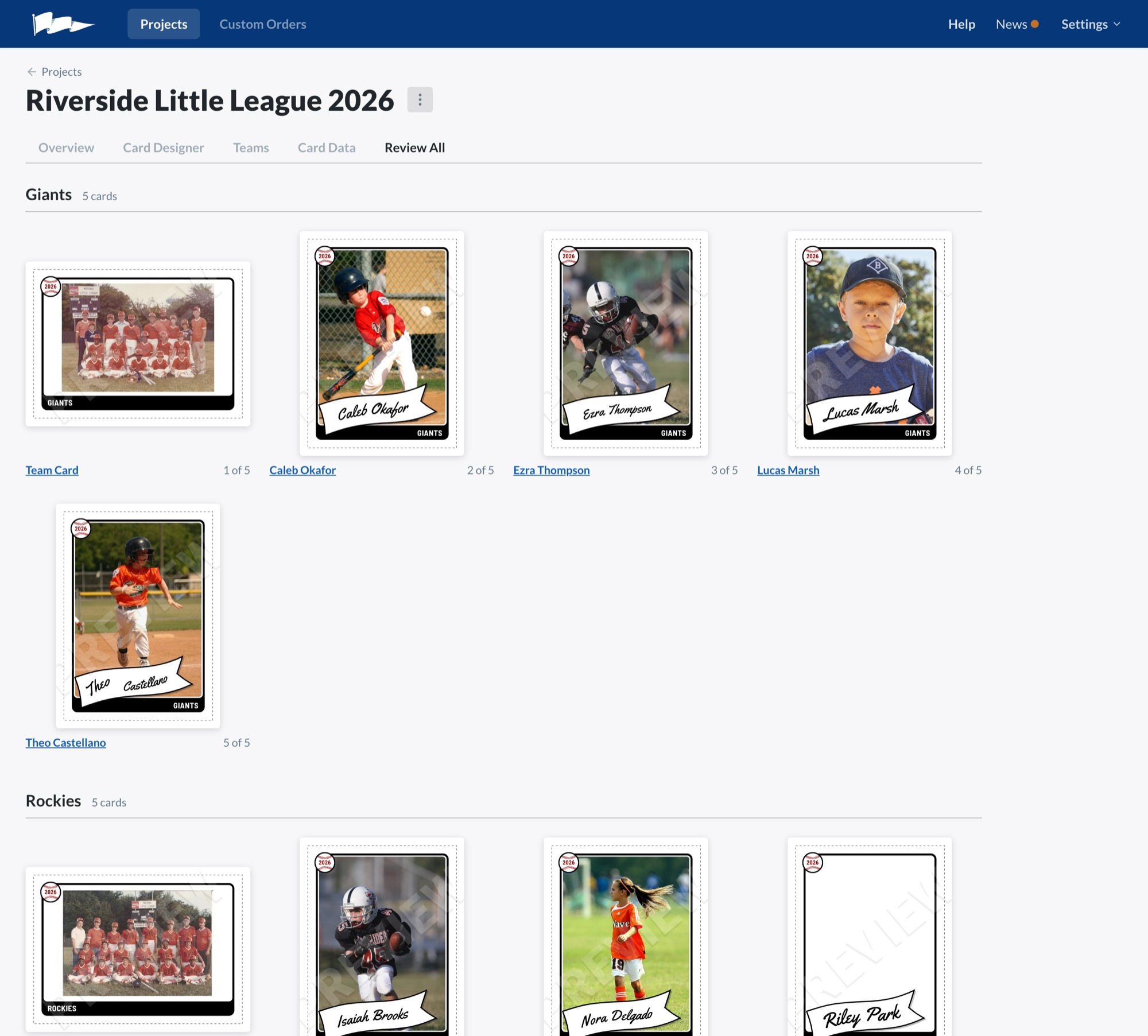
The Overview tab keeps a count of how many cards still need a photo. Cards without a photo aren't included in the order, which lets you add coaches to the roster without printing cards for them. In the example above, one player still needs a photo.
When everything looks right, click Place Order. Choose how many copies of each card to print (most leagues pick a number that lets every kid on the team get a full set and still have a few to trade), choose standard or rush production, and check out. We'll take it from there!
The whole thing, in order
- Build the spreadsheet: First Name, Last Name, Team, plus any optional columns. Export as CSV.
- Create a project, pick a design, and import the CSV from the Card Data tab.
- Click Add Team Cards.
- Name the photos "First Last.jpg" and use Bulk Import Photos.
- Pick Roster for the back, or Stats with the parent form.
- Check Review All, then Place Order.
If you have any questions or need help, just let us know!